
How to Access UPHSL Online Services
This guide will help you access various online services provided by the University of Perpetual Help System Laguna. Select a platform below to view detailed instructions.
GTI Online Grades
Access your academic records, grades, and attendance information
What is GTI?
GTI (School Automate Account) is the online portal where students and parents can view grades, attendance records, and academic information. It integrates technology for effective school management.
Access GTI:
First Time Login (Default Account):
Example:
Username: 20-1234-567
Password: 20-1234-567
How to Access GTI:
Method 1: Via Navigation Menu
- Click on "GTI Online Grades" from the Online Services menu
- You will be redirected to the appropriate GTI portal
- Enter your student number as both username and password
- Click "Login" to access your account
Method 2: Via Direct Button Above
- Click on the "School Portal" button above
- You will be taken directly to the GTI login page
- Enter your student number as both username and password
- Click "Login" to access your account
Method 3: Via Direct Link
Method 4: Via QR Code Scan

School Portal QR Code
Scan with your mobile device camera to access GTI School Portal
How to Scan:
- Open your mobile device's camera app
- Point the camera at the QR code above
- Tap the notification that appears to open the GTI portal
- Enter your login credentials when prompted
Creating Your Account (Step 2):
Username Format:
Password:
Use your desired password (choose a strong, secure password)
Example:
Important Reminder:
Write down your new username and password in a safe place! You will need these credentials every time you log into GTI. We recommend saving them in a secure password manager or writing them down and keeping them in a safe location.
- Your username format:
UPHB-[your-choice] - Your password: The secure password you created
- Keep these credentials private and don't share them with others
Important Security Note:
Change your password after first login for security. Use a strong, unique password that you haven't used elsewhere.
What You Can Do:
- View current grades and GPA
- Check attendance records
- View class schedules
- Access academic records
- Download grade reports
Moodle Learning Management System
Access your online courses, assignments, and learning materials
What is Moodle?
Moodle is UPHSL's e-Learning platform where students access online courses, assignments, quizzes, and course materials.
Access Methods:
Method 1: Via Navigation Menu
- Click on "Moodle for Basic Education/Moodle for College" from the Online Services menu
- You will be redirected to the Moodle login page
- Enter your username and password (see credentials below)
- Click "Log in" to access your courses
Method 2: Via QR Code Scan
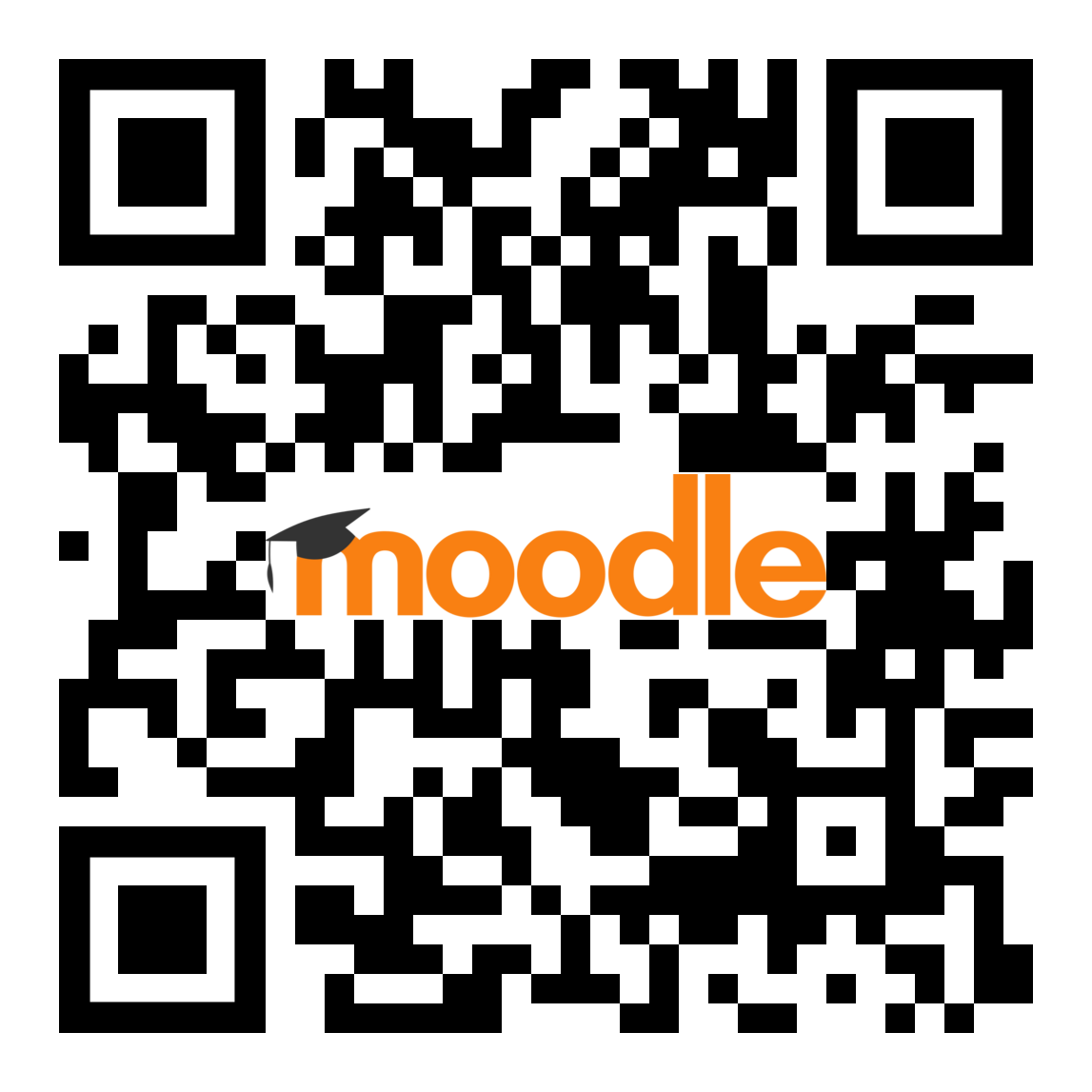
Moodle for Basic Education QR Code
Scan with your mobile device camera to access Moodle
How to Scan:
- Open your mobile device's camera app
- Point the camera at the QR code above
- Tap the notification that appears to open Moodle
- Enter your login credentials when prompted
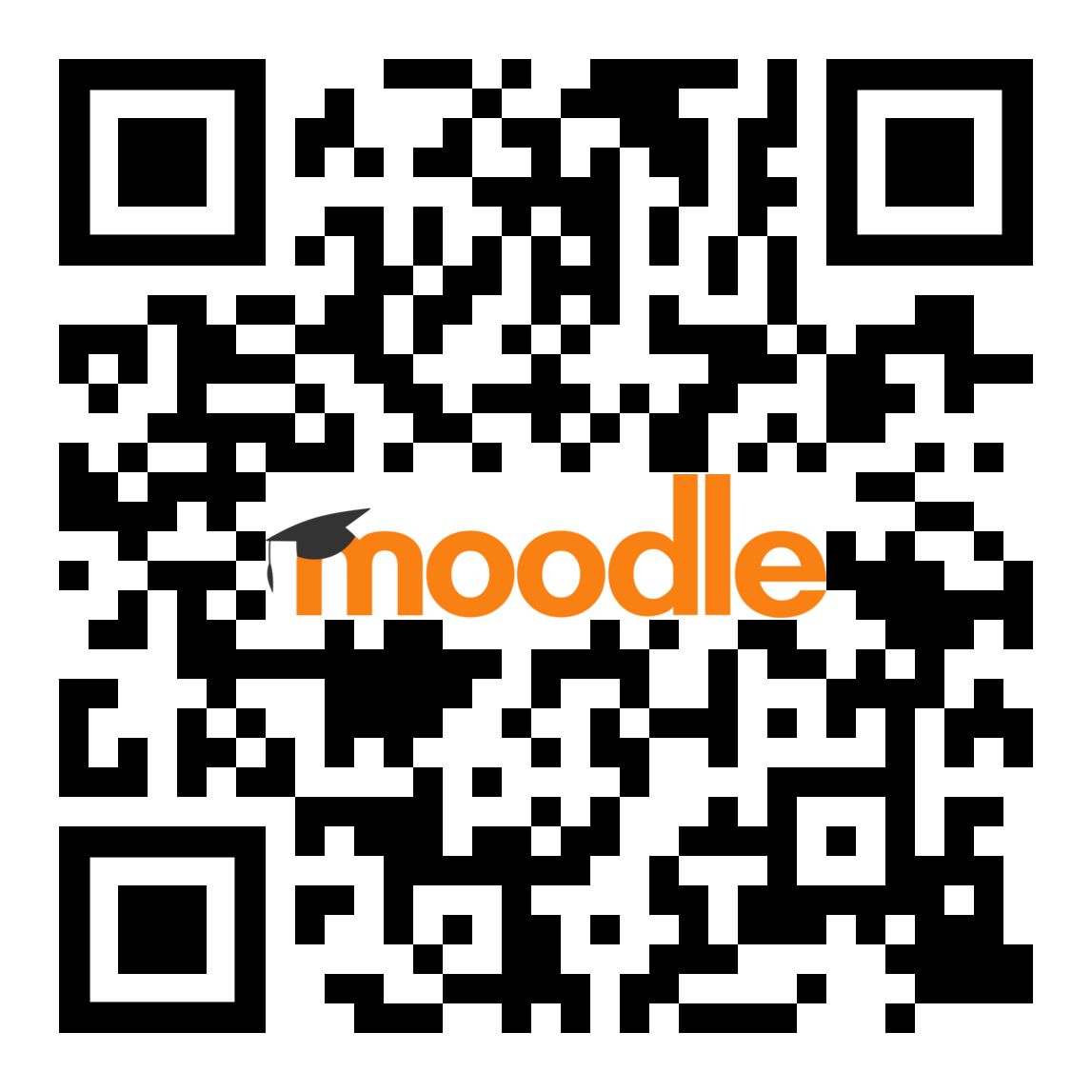
Moodle for College QR Code
Scan with your mobile device camera to access Moodle
How to Scan:
- Open your mobile device's camera app
- Point the camera at the QR code above
- Tap the notification that appears to open Moodle
- Enter your login credentials when prompted
Method 3: Via Direct Link
Moodle LMS for Basic Education: https://lmsbed.uphsl.edu.ph/
Moodle LMS for College: https://lmsbinan.uphsl.edu.ph/
Default Login Credentials:
Example:
Username: c21-1234-456
Password: #Uphsl123
What You Can Do:
- Access online course materials
- Submit assignments online
- Take online quizzes and exams
- Participate in discussion forums
- View grades and feedback
- Download course resources
Google Account (Gmail & Google Workspace)
Access Gmail, Google Drive, and other Google services
What is Google Account?
UPHSL provides Google Workspace accounts for students, including Gmail, Google Meet, Google Drive, and other Google services essential for academic collaboration.
How to Access:
- Click on "Google Account" from the Online Services menu
- You will be redirected to Google sign-in page
- Enter your UPHSL email address (see formats below)
- Enter your password (see options below)
- Click "Next" to access your Google account
Email Address Format:
Default Password:
Example:
Email: c21-1234-567@uphsl.edu.ph
Password: #Uphsl123
Important Password Information:
When you first log in with the default password, you will be required to create a new password.
- Use the default password
#Uphsl123to log in for the first time - You will be prompted to create a new, secure password
- Remember your new password! You will need it for all future logins
- Write down your new password in a safe place or use a password manager
- Do not share your password with anyone
Available Services:
- Gmail - Email communication
- Google Drive - File storage and sharing
- Google Docs - Document creation and collaboration
- Google Sheets - Spreadsheet creation
- Google Slides - Presentation creation
- Google Meet - Video conferencing
- Google Calendar - Schedule management
Microsoft 365 (Office 365)
Access Office applications and cloud services
What is Microsoft 365?
Microsoft 365 provides access to Office applications like Word, Excel, PowerPoint, OneDrive, and other Microsoft services essential for academic productivity.
How to Access:
- Click on "Microsoft 365" from the Online Services menu
- You will be redirected to Microsoft login page
- Enter your UPHSL email address (see formats below)
- Enter your password (see options below)
- Complete authentication if prompted
- Click "Sign in" to access Microsoft 365
Email Address Format:
Default Password:
Example:
Email: c21-1234-567@uphsl.edu.ph
Password: #Uphsl123
Important Password Information:
When you first log in with the default password, you will be required to create a new password.
- Use the default password
#Uphsl123to log in for the first time - You will be prompted to create a new, secure password
- Remember your new password! You will need it for all future logins
- Write down your new password in a safe place or use a password manager
- Do not share your password with anyone
Available Applications:
- Microsoft Word - Document processing
- Microsoft Excel - Spreadsheet management
- Microsoft PowerPoint - Presentation creation
- Microsoft OneNote - Note-taking
- OneDrive - Cloud storage
- Microsoft Teams - Collaboration platform
- Outlook - Email and calendar
Online Payment System
Pay your tuition fees and other school charges online securely
What is the Online Payment System?
UPHSL's Online Payment System allows students and parents to pay tuition fees, miscellaneous fees, and other school charges conveniently and securely through various payment methods including credit cards, debit cards, and digital wallets.
Step-by-Step Payment Guide:
Click on any image to view in full screen and navigate through the steps
Step 1

Step 2

Step 3

Step 4

Step 5

Step 6

Step 7

Access Methods:
Method 1: Via Navigation Menu
- Hover over "Online Services" in the main navigation menu
- Click on "Online Payment" from the dropdown menu
- Select the appropriate payment option based on your status
- Follow the specific instructions for your selected payment type
Method 2: Via Direct Links
Troubleshooting Common Issues
Get help with login problems and technical issues
Common Login Issues:
Wrong Username/Email Format
- GTI: Use your Student Number only (e.g., 21-1234-567)
- Moodle: Use c + Student Number (e.g., c21-1234-567)
- Google Account: Use c + Student Number@uphsl.edu.ph (e.g., c21-1234-567@uphsl.edu.ph)
- Microsoft 365: Use c + Student Number@uphsl.edu.ph (e.g., c21-1234-567@uphsl.edu.ph)
Password Problems
- First Time Login: Use #Uphsl123 as default password
- After Password Change: Use the new password you created
- Forgot New Password: Contact ITS for password reset
- Case Sensitive: Make sure Caps Lock is off
Connection Issues
- Check your internet connection
- Try refreshing the page
- Clear browser cache and cookies
- Try using a different browser
- Disable browser extensions temporarily
QR Code Scanning Issues
- Ensure good lighting when scanning
- Hold your device steady
- Make sure the QR code is not damaged
- Try using a different QR code scanner app
- If QR code doesn't work, use the direct links instead
GTI Online Grades Access Troubleshooting:
Click on the image below to view in full screen
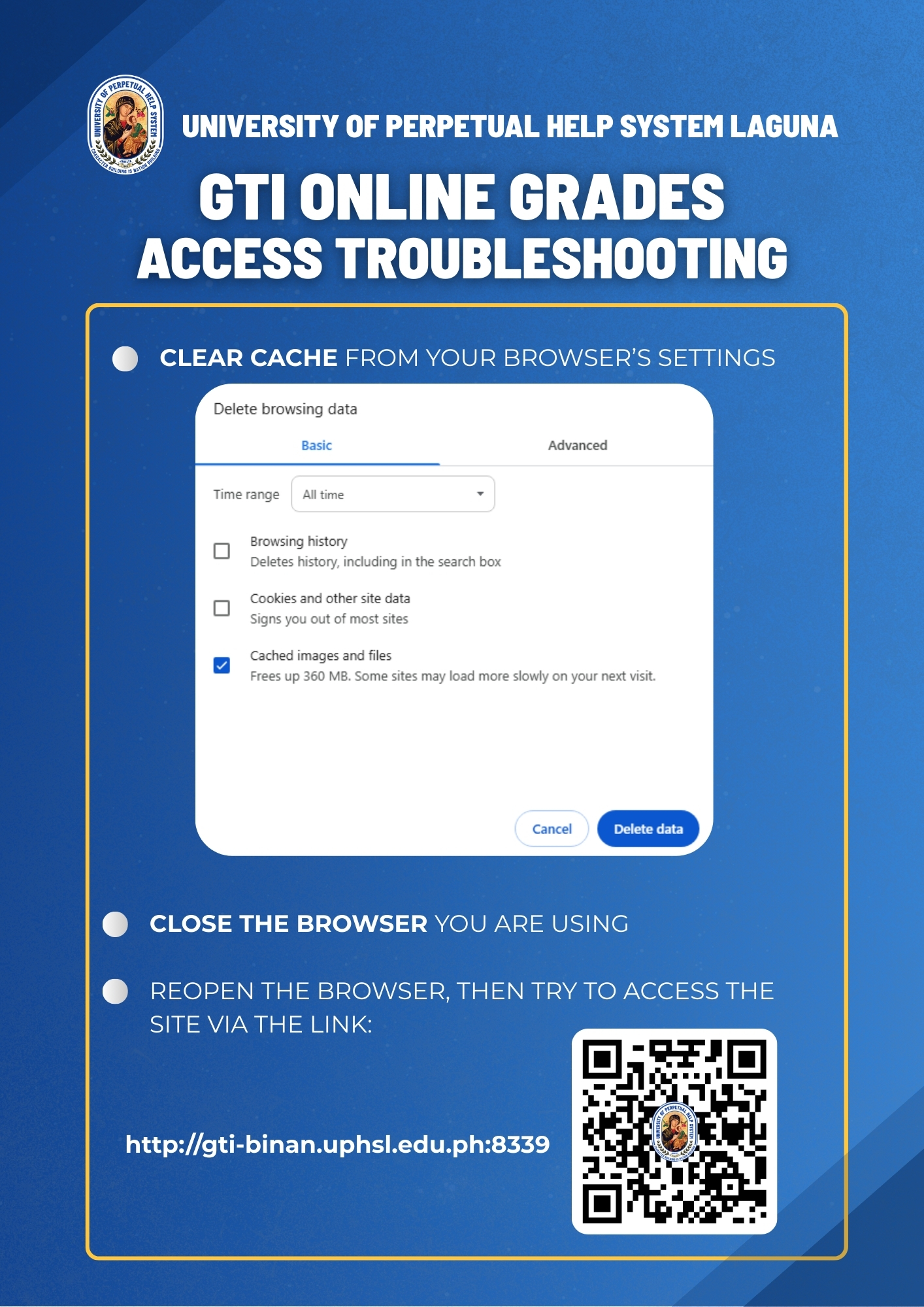
Step-by-Step Troubleshooting Guide:
Clear Cache from your browser's settings
- Open your browser's settings menu
- Navigate to "Delete browsing data" or "Clear browsing data"
- Select "All time" from the time range dropdown
- Check the box for "Cached images and files"
- Click "Delete data" to clear the cache
This will free up storage space and may cause some sites to load more slowly on your next visit, but it will help resolve access issues with GTI.
Close the browser you are using
- Completely close all browser windows and tabs
- Make sure the browser application is fully closed (not just minimized)
Reopen the browser, then try to access the site via the link
- Open your browser again
- Navigate to: http://gti-binan.uphsl.edu.ph:8339
- Alternatively, scan the QR code shown in the troubleshooting guide above with your mobile device to access the GTI portal directly
- Enter your login credentials and try accessing your grades again
Important: If you continue to experience issues after following these steps, please contact the ITS Office for further assistance.
Account Access Problems:
Need Help?
ITS Jonelta
2nd Floor, Main Building
Monday - Friday
8:00 AM - 5:00 PM